

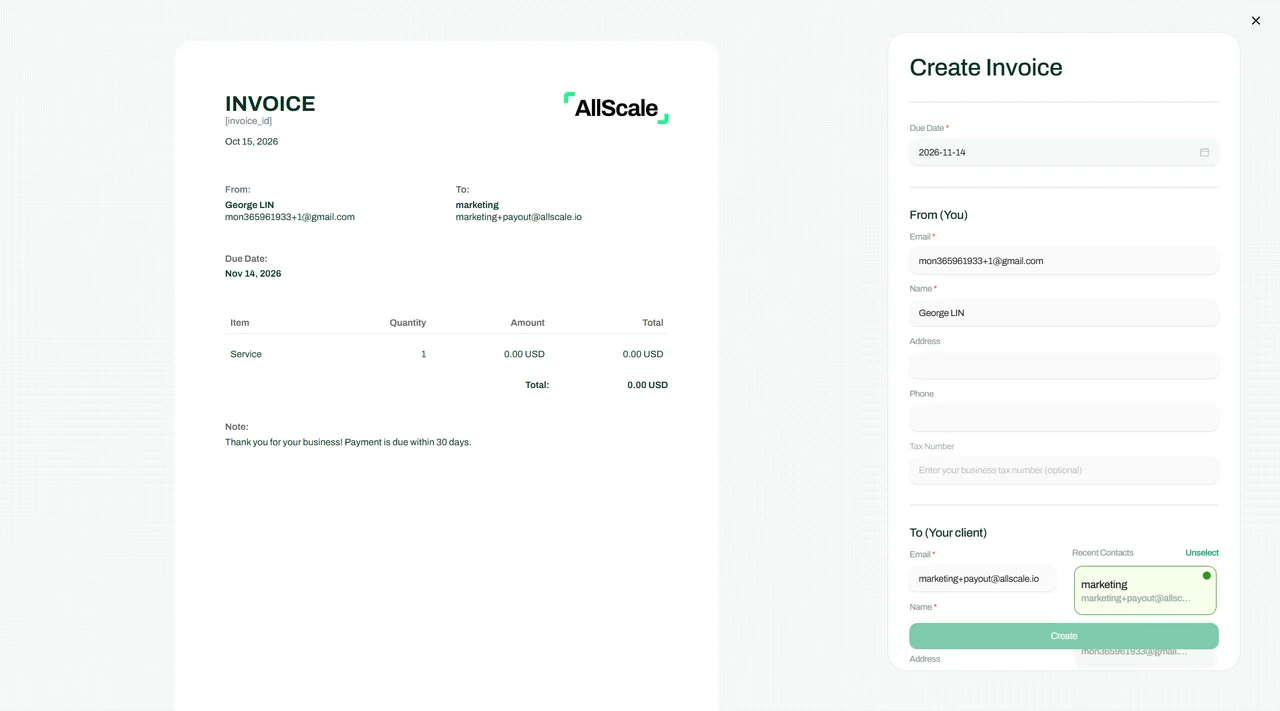
AllScale Invoice
Create a clear payment request for your client. Review the available USDT payment options before sharing it.
Explore Invoice ↗ USDT · BUILT FOR BUSINESS
Receive, hold and send USDT with a self-custody wallet for business payments. Check your receiving details, review your balance and keep track of transactions in AllScale.
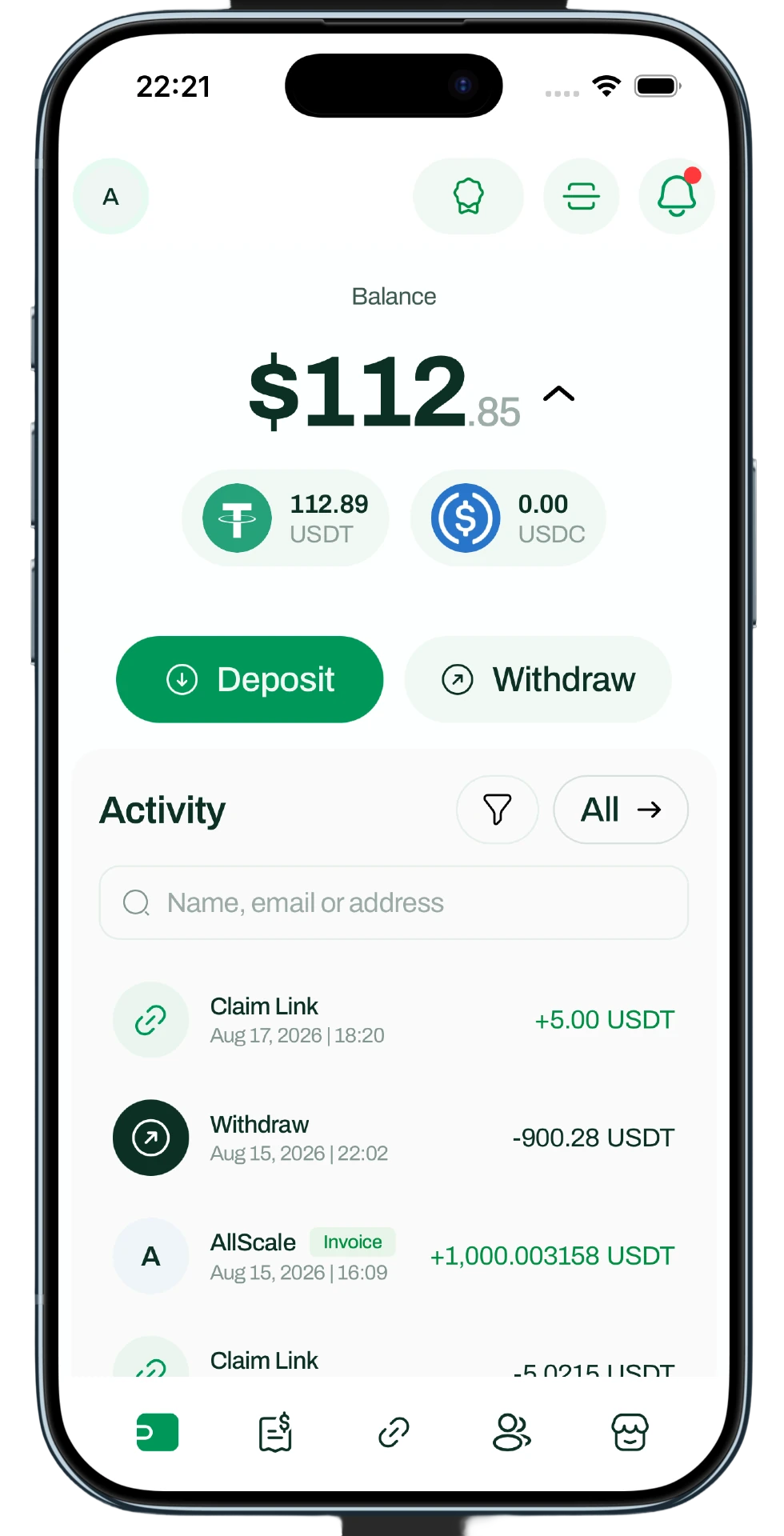
AllScale product interface. Displayed balances are from the product illustration.
01 / RECEIVE
Receive USDT into your AllScale wallet using a supported receiving route. Match the asset and network shown in your account before sharing your receiving details with a customer or another wallet.
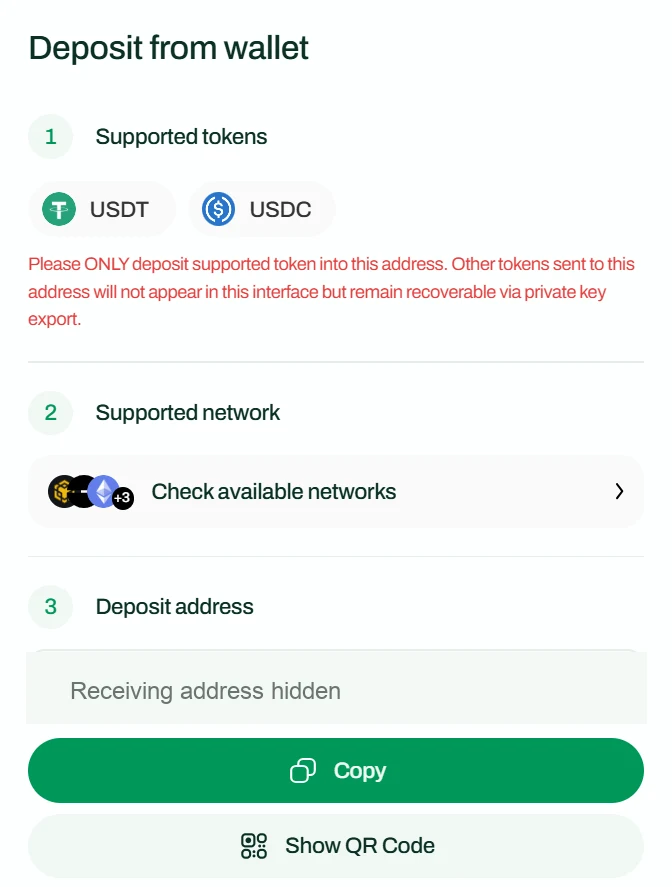
Official Wallet Features guide · receiving address hidden
02 / BALANCE & RECORDS
Keep USDT available for your next business payment. Review incoming and outgoing transactions, and keep the transfer reference alongside the invoice, order or business record that explains why the funds moved.
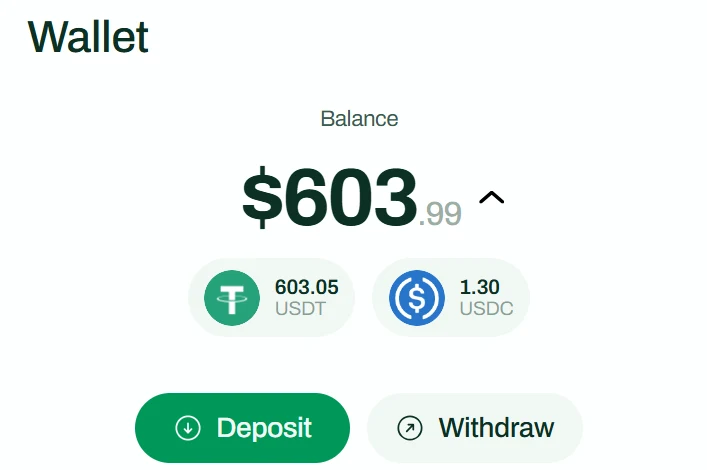
USDT and USDC balances · official documentation
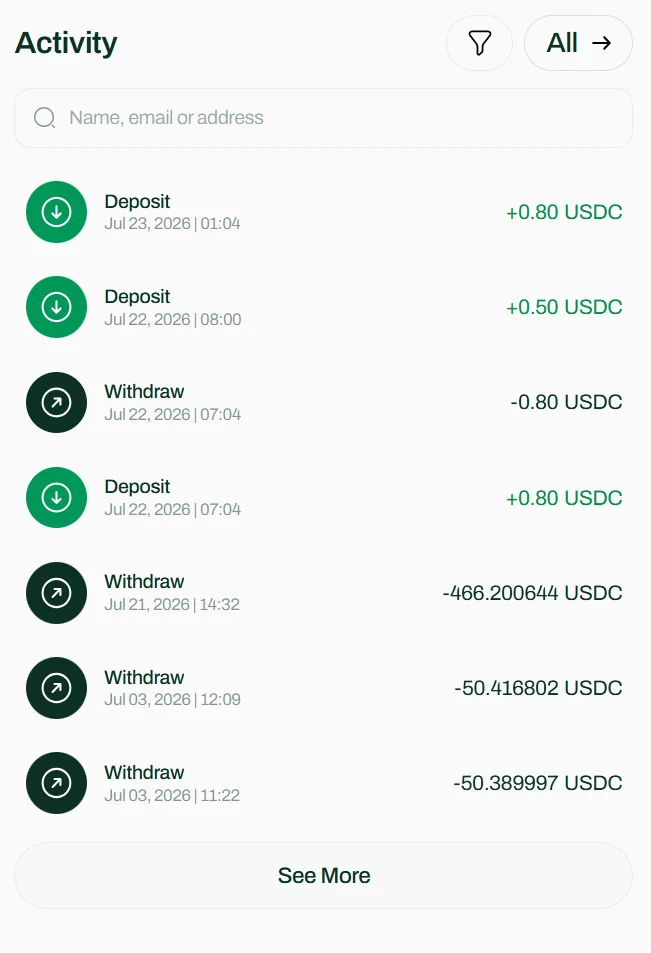
Incoming and outgoing activity · official documentation
03 / SEND WITH CONFIDENCE
Check the destination asset, network and address before sending USDT. Review the amount and fee shown for the transfer, then keep the transaction reference so you can follow its progress.
Confirm the destination asset, exact token and network with the recipient. Copy the address carefully.
Check the transfer amount, available balance and any fee shown before you confirm.
Keep the transaction reference. Check the network record and confirm credit with the receiving service.
A confirmed blockchain transaction and a receiving platform’s credited balance are separate checks. Use both when following a business payment.
04 / CUSTOMER PAYMENTS
Need to request payment from a client? Explore AllScale Invoice. For payments on a website or application, explore Checkout and review the payment methods and settlement options available for that flow.
Create a clear payment request for your client. Review the available USDT payment options before sharing it.
Explore Invoice ↗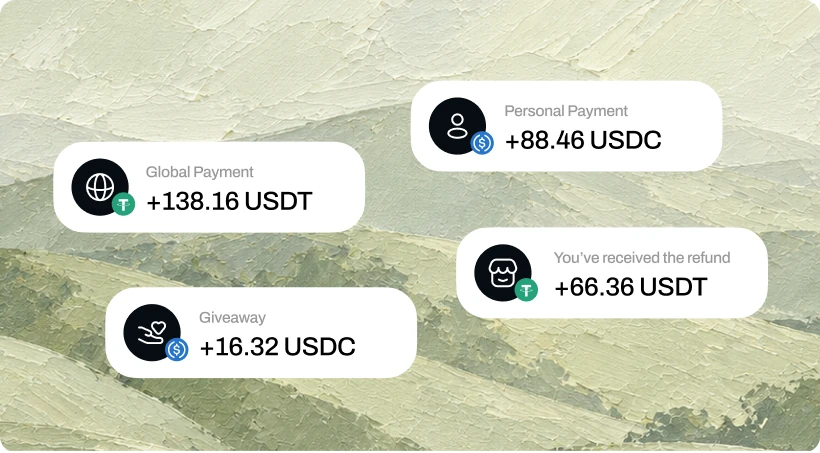
Connect your website or application to a payment flow. Configure the methods and settlement routes available for your store.
Explore Checkout ↗PRODUCT / ASSET / NETWORK
Wallet transfers, customer checkout and Virtual Account settlement have separate requirements. Review the current receiving instructions for the product you are using.
| Product | Task | Asset | Network | Access & fees | Guide |
|---|---|---|---|---|---|
| Wallet | Receive, hold & send | USDT | Supported routes shown in your wallet | AllScale account; confirm the exact token/network and transfer fee before sending. | Wallet guide ↗ |
| Invoice | Client payment request | USDT, when offered for the invoice | Payment options for the specific invoice | Review the invoice payment flow and applicable terms. | Invoice guide ↗ |
| Checkout | Online customer payments | Store-configured accepted tokens | Accepted-token and settlement settings for the store | Enable Checkout in Settings → Commerce. Confirm available routes and fees in your store. | Checkout guide ↗ |
| Virtual Account | Receive USD / withdraw USD | USDC; USDT requires separate activation | USDT routes require individual activation | KYC/KYB approval and regional restrictions. Default platform fee 0.6%; withdrawal network/fixed fees may apply. | Account guide ↗ |
Reviewed 20 October 2026 against the linked official guides. Public wallet and invoice documentation does not provide a complete current token-by-network matrix; use the route and quote shown in your account. Do not infer wallet or Checkout support from Virtual Account settlement networks.
Compare USDT, USDC and DAI for payments ↗A FEW THINGS TO KNOW
Yes, use a receiving route supported by your AllScale account. Match the sending network and asset to the receiving details before sharing an address or starting a transfer.
Explore AllScale Invoice for a client payment request. Check the payment options available for that invoice before sending it to your client.
Choose a network supported by both the sending service and the specific AllScale receiving flow. Use the route shown in your account rather than relying on the token name alone.
Review the transaction details available in your wallet. When a transaction reference is available, use it to check the corresponding network record and confirm receipt with the recipient.
MAKE ROOM FOR WHAT’S NEXT
Start with the receiving route in your account. Keep the asset, network and payment record connected.