Check balances & transactions
See wallet balances by asset and network. Look up transactions and inspect the details.
“Show my last 10 transactions and the largest one in detail.”
Check wallet balances, manage invoices and prepare payments from your AI assistant. Sign in with OAuth; approve payments yourself in AllScale.
No API key to configure. Payments need your passkey.
 Awaiting approval
Review the payment in AllScale.
Approve with your passkey.
Use natural-language requests to check your merchant account and handle everyday payment tasks.
See wallet balances by asset and network. Look up transactions and inspect the details.
Find unpaid invoices, create and send a new invoice, or update an existing one.
Ask your assistant to prepare a payment or claim link. Review and approve it yourself in AllScale.
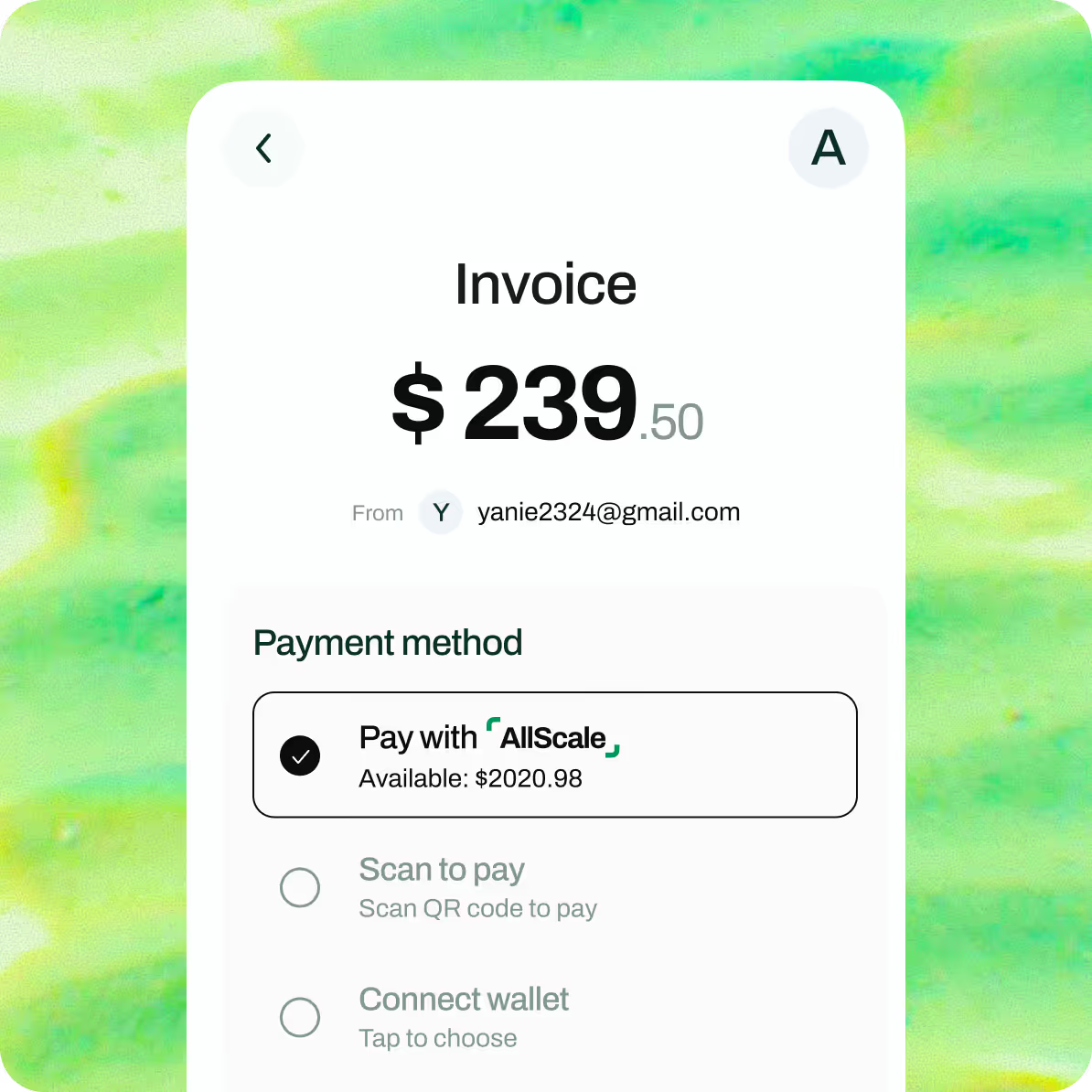
Check invoice and claim link details, or create a checkout link to collect payment for your store.
Explore the available tools ↗Checkout link creation requires a checkout store selected during authorization.
OAuth connects your assistant to the merchant account and permissions you select.
The assistant can access only the merchant account you select during sign-in.
Read-only access cannot change records. Reconnect to grant additional permissions.
Payment tools create a pending action. Funds move only after you approve in AllScale with your passkey.
Review or remove connections in Settings → Connected AI apps in AllScale.
You’ll need an AllScale merchant account and an AI client that supports remote MCP and OAuth. Select your client for instructions.
Each tool operates within the permissions granted to the connection.
whoami shows the merchant, store and permission status. Use wallet_list for balances and transaction_list / transaction_get for transactions.
Read with invoice_list, invoice_get, claim_link_list and claim_link_get. Creating and sending invoices with invoice_create_and_send, or updating with invoice_update, requires write permission.
checkout_link_create generates a collection link. Select a checkout store when authorizing your connection.
payment_prepare, invoice_pay_prepare and claim_link_prepare create pending actions for your approval in AllScale. Check the result with pending_action_status.
Copy the connection prompt into your assistant to try connecting through OAuth.
Get the connection prompt ↑AllScale is applying to list its Grok Bot and Muse connectors/plugins in their official marketplaces.
Until then, try the prompt-based setup. Connection availability depends on your client’s support for remote MCP and OAuth.
AllScale MCP is a remote Model Context Protocol service that connects a compatible AI assistant to your AllScale merchant account. It provides tools for balances, transactions, invoices, claim links and payment preparation.
Official AllScale connectors/plugins are in the marketplace application process. For now, copy the connection prompt in the setup guide and ask your assistant to try connecting. This depends on your client’s remote MCP and OAuth support.
No. Payment tools prepare a pending action. You must review and approve it in AllScale with your passkey before funds move. Other write tools, such as invoice creation, use the permissions you grant.
No API key is needed for the OAuth connection described here. Sign in through your browser and choose the account and permissions to authorize.
Ask your assistant to check whoami for missing permissions. Reconnect and select the required permissions. You can remove the old connection in Settings → Connected AI apps.
Your connection needs a checkout store. Reconnect and select one on the authorization page.
In Claude Code, use /mcp to reauthorize. In Codex, run codex mcp login allscale. Remove a connection at any time in AllScale under Settings → Connected AI apps.
Connect your assistant, then ask: “What are my AllScale wallet balances?”
Choose your client ↗