
To write an invoice, start with the seller and client details, add a unique invoice reference and dates, then list the work, rates and amount due. Finish with the agreed payment terms and check the complete document before sending it.
A client should be able to match the invoice to the work they approved without asking what a charge covers or when payment is due. This guide walks through the fields using a research-and-report project: USD 1,500 in services, a USD 100 agreed discount and a USD 1,400 total.
Choose the right starting format
Start with an invoice layout that matches your work. The free AllScale invoice generator creates a standard PDF online. Prepare the billing details, agreed scope, rates and payment terms before filling it in. For project or freelance work, you can also start with the contractor invoice template.
Keep the signed scope, purchase order or approval message nearby. These records give you the agreed price, billing contact and any reference the client needs to approve payment. If the client has a supplier portal or a required billing format, check that before preparing the document.
An editable template works too. The format matters less than whether the finished invoice contains the required details, calculates correctly and stays readable as a PDF. Creating the PDF is a separate step from sending it or collecting payment.
Add the parties, reference and dates
Make it clear who is billing whom, which invoice this is and when payment is due. Check the client’s billing details with the person who handles invoices, particularly when your day-to-day project contact works for a different entity or department.
| Invoice field | What to enter | What to check |
|---|---|---|
| Seller | Your business or trading name, contact details and relevant address | The name matches your agreement and applicable invoicing requirements |
| Client | The entity being billed and its billing contact or department | The invoice goes to the correct business, not simply the person who commissioned the work |
| Invoice number | A unique reference within your invoice records | It is not already assigned to another invoice |
| Issue date | The date the invoice is issued | It matches the final document and your records |
| Due date | The agreed calendar deadline for payment | It agrees with the payment term and its starting event |
| Project or purchase order reference | The relevant project code or client-supplied PO number | It points to the work or budget being billed |
Tax identifiers and other required particulars depend on the transaction and your circumstances. Include them when applicable; do not copy a sample registration number from a template.
Keep invoice numbering consistent
If you assign invoice numbers yourself, use a system you can maintain, such as INV-2026-042. The example means only that this business uses a year and sequence; it is not a universal numbering requirement. Check any rules that apply to your business before choosing a format.
The AllScale free generator displays that the Invoice ID is generated when the invoice is created. Check the generated identifier after downloading and record it in your accounts. The custom number used in the worked example below is illustrative; it does not imply that the generator lets you choose its automatic ID.
If you revise an invoice, keep a record of what changed and use the correction process appropriate to your accounting requirements. Avoid leaving two different amounts in circulation with no explanation of which version the client should use.
Describe the work and calculate the charges
Show enough detail for the client to match each charge to the agreement. Name the service or deliverable, include the billing period when useful, and show the quantity and agreed rate.
“Research” becomes easier to approve when it says “Customer research for Project R-014, 19–23 October 2026.” For a fixed-price deliverable, use a quantity of one and identify what that price includes. For hourly work, show the number of hours and hourly rate.
A complete illustrative invoice
The following example uses fictional businesses and contact information. It assumes no tax applies to this example transaction; that assumption is not a recommendation for your invoice.
| Field | Example entry |
|---|---|
| Seller | Northlight Research Studio · [email protected] |
| Client | Harbor Product Team · [email protected] |
| Invoice number | INV-2026-042 |
| Project reference | R-014 — Customer research and findings report |
| Issue date | 30 October 2026 |
| Due date | 13 November 2026 |
| Invoice currency | USD |
| Payment terms | Net 14 from the issue date; bank transfer using separately verified receiving instructions |
| Item | Quantity | Rate USD | Amount USD |
|---|---|---|---|
| Customer research, 19–23 October 2026 | 8 hours | 120 | 960 |
| Findings report for Project R-014 | 1 report | 540 | 540 |
| Subtotal | 1,500 | ||
| Agreed project discount | −100 | ||
| Tax in this example | 0 | ||
| Total due | 1,400 |
Payment note: Please pay USD 1,400 by 13 November 2026 using the bank transfer instructions verified with our billing contact. Include INV-2026-042 as the payment reference.
The calculation is quantity × rate for each line: 8 × USD 120 = USD 960, plus 1 × USD 540 = USD 540. Those lines total USD 1,500. Subtracting the agreed USD 100 discount gives USD 1,400, with no tax added in this illustrative case.
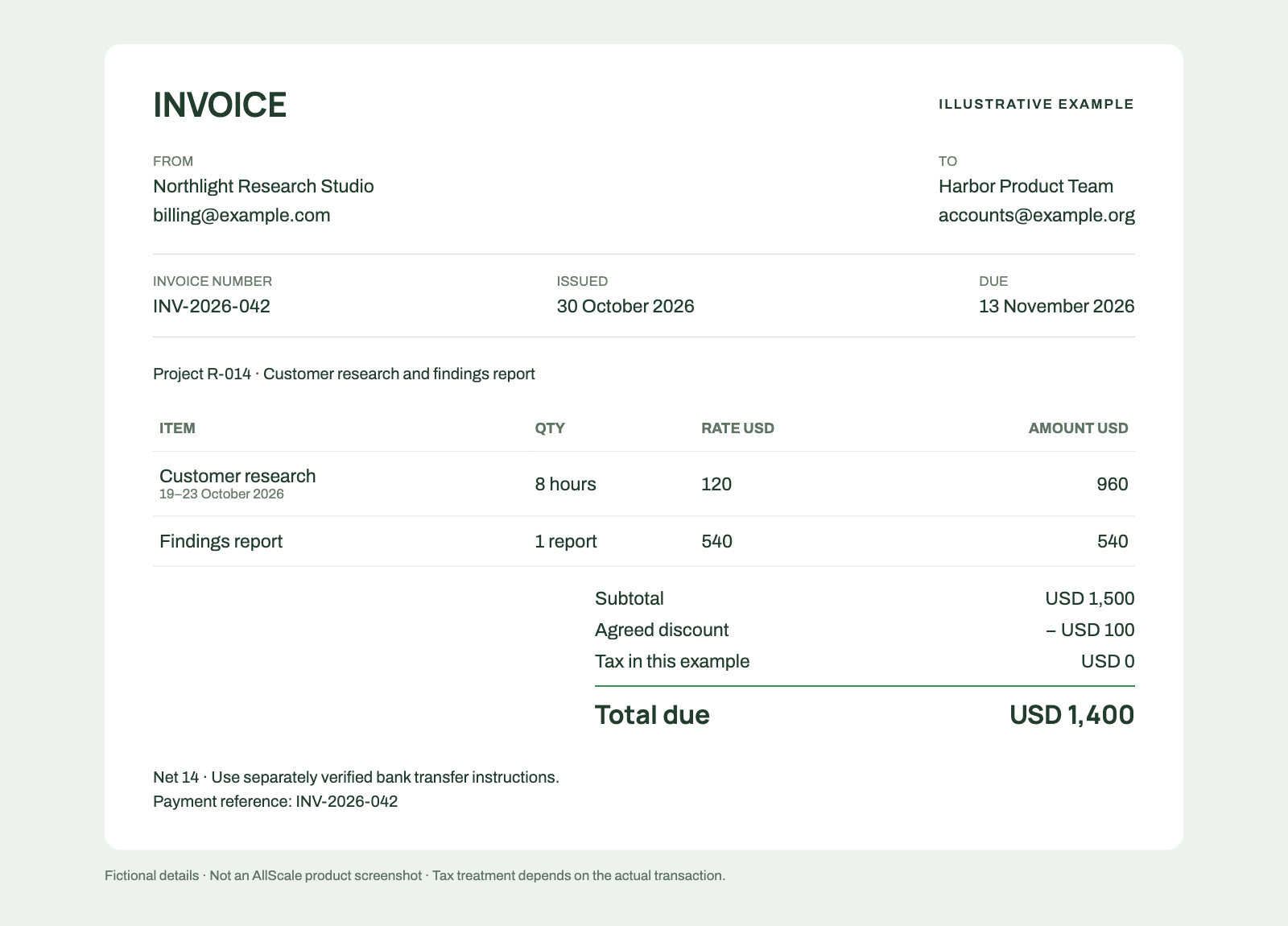
Illustrative invoice layout, not an AllScale product screenshot. Fictional details; tax treatment must be checked for the actual transaction.
Keep discounts visible instead of quietly reducing a line item that was approved at a different price. If an advance or credit already reduces the balance, show it clearly and distinguish the invoice total from the amount still payable.
Before you copy the example, replace its business details, dates, reference and commercial terms with your own. Add any required address or tax information. A worked example shows the structure; it cannot determine which particulars your transaction legally requires.
Add usable payment instructions
State the invoice currency, accepted method and reference the client should use. The currency used to price the work and the asset used to settle it may be different, so record both when necessary.
For a bank payment, identify the verified receiving instructions and tell the client which invoice reference to include. For a stablecoin request, link to the agreed payment flow and confirm the accepted asset and network. Do not assume that writing “USD” on an invoice also authorizes payment in USDC or USDT.
| Field combination | Bank transfer | Stablecoin payment request |
|---|---|---|
| Invoice amount | Amount and billing currency, such as USD 1,400 | Amount and billing currency, plus the agreed settlement asset quantity or conversion basis |
| Receiving instructions | Verified beneficiary and bank details, or an explicit reference to instructions already shared through a trusted channel | Verified invoice payment link or receiving instructions for the supported asset and network |
| Payment reference | Invoice number in the transfer reference field where supported | Invoice number linked to the request or transaction record |
| Charges | Agreed allocation of any transfer charges | Actual displayed charges and the expected recipient amount |
| Deadline | Agreed due date | Agreed due date |
Use actual verified details in your final invoice. This guide deliberately does not provide sample bank accounts, wallet addresses or clickable dummy payment links that could be mistaken for a place to send funds.
If using a payment request, AllScale Invoice is separate from the free PDF generator. Its official guide describes creating and sending requests and viewing invoice history. Check the options available in the particular invoice flow before describing them to your client.
Agree on any change in payment method or receiving details with the client. Use the payment terms examples to write a clear amount, due date and next action.
Check and save the final version
Review the total, recipient, file name and payment instructions before delivery. Open the downloaded PDF rather than assuming it looks exactly like the editing screen.
Check the following against your source records:
- The seller and client names match the agreement, and the billing email is correct.
- The invoice number is recorded and the project or PO reference is present where required.
- Every line has the right quantity, rate and amount. Discounts, tax and credits produce the correct final balance.
- The issue date and due date match the agreed term. In the example, 30 October plus 14 calendar days is 13 November.
- The payment instructions are verified and the reference the client should use is clear.
- Long descriptions, totals and notes remain readable across line wraps and page breaks.
Save the PDF with a recognizable filename, such as INV-2026-042-Harbor-Product-Team.pdf, and keep it with the supporting approval record. If the tool assigned the ID, use that actual identifier in your records and filename.
When you send it, make sure the final PDF is the version attached or uploaded. A generated file does not establish that an email was sent, a client received it or a payment arrived. Record delivery separately from creation and payment.
Frequently asked questions
Can I create an invoice without invoicing software?
Yes. Use an editable template and check the required details, calculations and payment instructions. A generator can help produce a standard PDF. You still need to verify the finished document and retain your invoice records.
What should the description of work include?
Use the deliverable or service, billing period where relevant, quantity and agreed rate. The client should be able to match the line to the work approved. Add a project reference when it helps distinguish similar assignments.
Should I add tax to every invoice?
Fill the tax field according to the treatment applicable to the transaction and your circumstances. The zero-tax line in this example is an explicit assumption, not a rule. Confirm the appropriate treatment before issuing your invoice.
What should I check after downloading the PDF?
Open it and check names, dates, line totals, the final amount and payment instructions. Make sure long descriptions and page breaks remain readable. Check the generated Invoice ID if the tool assigns one, then save the final file with the matching reference.
Create the invoice from your agreed details
Have your client details, approved work, rates and payment terms ready? Create an invoice PDF, then open the downloaded file and check it before delivery.
For contractor work, the contractor invoice template provides another starting point. Use AllScale Invoice when you need a payment-request workflow alongside the billing document.